Google Search Console: The 5 Reports SMBs Need
27.6% CTR at position 1, 60% zero-click searches, only 47% pass all Core Web Vitals. Five reports, 15 minutes per week – and you know how Google sees your website. Consent-free, free, straight from Google.
You set up Google Search Console. Maybe years ago. You have not opened it since. You are not alone: 61% of SMBs invest nothing in SEO, and among those who do, most ignore their best free tool.
Search Console is not an analytics tool. It shows you how Google sees your website. Which pages are indexed, where technical errors exist, how fast your pages load, and since June 2026, whether your content appears in AI-generated answers. It has one decisive advantage over GA4: it needs no cookie consent. Every data point comes directly from Google, not from your visitors. In the DACH region, where consent banners destroy up to 70% of GA4 data, this makes Search Console the most reliable data source you have.
This article covers five reports you should know as an SMB owner. Not all 47 features. Not the power-user setup. Five reports, 15 minutes per week, and you know where your website stands.
Google sees your website differently than you do
nearly a third of all clicks
no click on any result
all Core Web Vitals
Why Search Console matters more than GA4
GA4 measures what visitors do on your website. Search Console measures what happens before the click: How often does your page appear in search results? At what position? How often do people click? GA4 cannot answer these questions.
Then there is the consent problem. Under GDPR, visitors must agree to tracking. Depending on industry and audience, 40 to 70% decline. Your GA4 then shows you only half your visitors. Search Console, on the other hand, needs no consent. Google collects the data server-side. You see 100% of impressions and clicks, without a single cookie.
For SMBs that have budget for neither a server-side tracking setup nor a BI solution, Search Console is the best entry point into data-driven marketing. Free, consent-independent, straight from Google.
Report 1: Performance – clicks, impressions, CTR, position
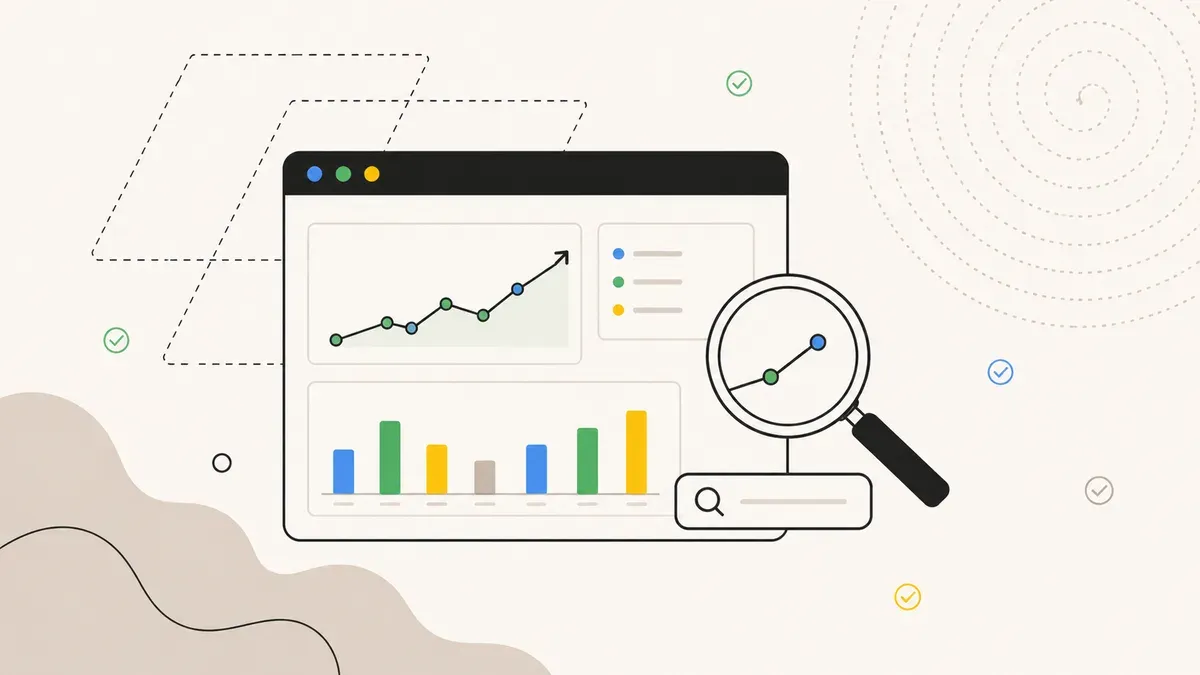
The Performance Report is the core of Search Console. It shows you four metrics for every page and every keyword on your website:
- Impressions – How often your page appeared in search results
- Clicks – How often someone clicked your result
- CTR (Click-Through Rate) – Clicks divided by impressions
- Average Position – Where your page ranks
CTR depends directly on position. Here is the 2026 distribution:
The top 3 positions collect 46.7% of all clicks. From position 4 onward, it drops off sharply. And when an AI Overview sits above the results, CTR at position 1 drops by 32%. Featured snippets, by contrast, capture 42.9% CTR. The type of search result matters as much as the position.
New since November 2025: You can now filter by branded vs. non-branded queries. Branded means searches containing your company name. Non-branded is everything else. For SMBs, non-branded is the more interesting filter because it shows whether you reach new customers through generic search terms.
New since June 2025: The 24-hour comparison shows data in near real-time. After publishing, you can check the next day whether Google already sees the page.
What you should do: Open the Performance Report, filter to the last 28 days, sort by impressions descending. Look for pages with high impressions but low CTR (below 3%). These pages show up frequently in search, but nobody clicks. The cause is usually the title tag or meta description. Revise them, and you increase traffic without creating new content.
Report 2: Page indexing – what Google sees and what it doesn't
Your website has 50 pages. Google has indexed 32 of them. The other 18 do not exist for search. You would never notice unless you check this report.
The Page Indexing Report shows you the status of every URL: indexed, not indexed, or errored. The most common problems:
- Crawled but not indexed – Google visited the page but deemed it too thin or too similar to other content. This is the most common and most frustrating status.
- Server Error (5xx) – Your server is not responding reliably. A hosting problem.
- Redirect Error – Redirect chains or loops.
- Soft 404 – The page returns HTTP 200, but Google recognizes it as an error page.
- Blocked by robots.txt – You are accidentally blocking Google.
- Duplicate without canonical – Multiple URLs with the same content, and you have not told Google which one is the original.
“Crawled but not indexed” hits SMB websites with thin pages especially hard: service pages with two sentences, blog posts with 200 words, category pages with no unique content. Google crawls them, then decides they add no value. The fix is not technical but content-related: more substance, clearer structure, better internal linking.
If you see fewer indexed pages after a website relaunch, check this report immediately. Missing redirects after a relaunch are one of the most common SEO mistakes. In our Technical SEO Audit, the indexing check is always the first step.
What you should do: Open the Indexing Report weekly. Sort by “not indexed” and work through the list top to bottom. Pages with 5xx errors take priority because they indicate server problems. “Crawled but not indexed” needs content work. “Blocked by robots.txt” is usually a configuration error.
Report 3: Core Web Vitals – page speed as a ranking factor
Since 2021, Google uses three metrics to evaluate user experience on your website. Since 2024, INP (Interaction to Next Paint) is the third metric, replacing FID. The three thresholds:
- LCP (Largest Contentful Paint) – How fast the largest visible element loads. Target: under 2.5 seconds.
- INP (Interaction to Next Paint) – How fast the page responds to clicks and input. Target: under 200 milliseconds.
- CLS (Cumulative Layout Shift) – How much elements shift during loading. Target: below 0.1.
Only 47% of websites pass all three thresholds. Those that do see 8 to 15% more visibility according to Google studies. That sounds small, but for an SMB website with 500 monthly visitors, that means 40 to 75 additional visitors per month – without new content, without ads.
The CWV report in Search Console does not show individual URLs. It groups similar pages. If your blog template has a CLS problem, you see all blog posts marked as “poor.” This helps because you fix the problem once at the template level instead of on 30 individual pages.
The most common problems on SMB websites: images without explicit width and height attributes (CLS), no lazy loading (LCP), too much third-party JavaScript from chat widgets and social media embeds (INP). In our article on GAIO and AI search, we explain why fast pages are also preferred for AI Overviews.
What you should do: Open the CWV report monthly. Focus on pages marked as “poor.” Use PageSpeed Insights for detailed analysis of individual URLs. Rule of thumb: fix LCP with better images and faster hosting, INP with less JavaScript, CLS with fixed image dimensions and reserved space for ads or embeds.
Report 4: Links – internal and external linking
The Links Report shows two things: which external websites link to you (backlinks) and how you link internally.
Backlinks are often a blind spot for SMBs. You do not know who links to you until you check this report. Search Console shows you the top linking domains, the most-linked pages on your website, and the most common anchor texts. If a domain with a questionable reputation links to you, you can spot it here.
The internal linking report is often more revealing for SMB websites. It shows which pages have the most internal links and which are barely linked. Pages with zero or just one internal link are “orphan pages.” Google struggles to find them, crawls them less often, and ranks them worse.
Example: you have a service page for “heating installation,” but not a single blog post links to it. In Search Console, you see that this page has only one internal link (probably the navigation). Add links from topically relevant blog posts, and Google better understands that this page matters. We describe this principle in the context of Local SEO for tradespeople.
What you should do: Open the Links Report monthly. Check the top 10 externally linked pages: are those the pages you want to push? Check the internal report for pages with fewer than three internal links. Every important page should be linked from at least three other pages.
Report 5: AI Performance – the new report since June 2026
On June 3, 2026, Google released the AI Performance Report. It shows impressions in three AI contexts: AI Overviews (the AI summaries above search results), AI Mode (the conversational search mode), and Discover AI.
There is no click data for this report yet. You only see impressions: how often was your website cited as a source in an AI-generated answer? That sounds limited, but it is a signal. If Google uses your content for AI answers, you have a new kind of visibility that goes beyond traditional rankings.
60% of all searches in 2026 end without a click. AI Overviews accelerate this trend because users read the answer directly in the search engine without visiting a website. Impressions in AI Overviews are not a replacement for clicks, but they show whether Google considers your content a trustworthy source.
For SMBs, this report is still new, but the direction is clear: if your content gets cited in AI answers, you build brand awareness even when the direct click does not happen. In our GAIO article, we explain how to structure content so it becomes visible in AI searches.
What you should do: Enable the AI Performance Report in Search Console (it is not visible by default). Check monthly which pages appear in AI answers. Compare with your top pages from the Performance Report: is there overlap? Pages that rank organically and get cited in AI Overviews are your strongest content.
All 5 reports at a glance
| Report | What it shows | Actionable insight | Frequency |
|---|---|---|---|
| Performance | Clicks, impressions, CTR, position per keyword and page | Pages with high impressions and low CTR: revise title and description | Weekly |
| Page Indexing | Indexing status of every URL, error types | Fix 5xx immediately, solve “Crawled but not indexed” with better content | Weekly |
| Core Web Vitals | LCP, INP, CLS for mobile and desktop | Identify “poor” groups, fix at template level | Monthly |
| Links | External backlinks, internal linking, anchor texts | Find orphan pages, ensure internal links from at least 3 pages | Monthly |
| AI Performance | Impressions in AI Overviews, AI Mode, Discover AI | Check which content serves as AI source, start GAIO optimization | Monthly |
Your weekly rhythm: 15 minutes that pay off
You do not need to be an SEO expert. You need a consistent rhythm. Here is a realistic plan:
Weekly (15 minutes, Monday morning):
- Open Performance Report, compare the last 7 days with the previous 7 days. Is there a drop in clicks or impressions? If yes: find the cause.
- Check the Indexing Report. New errors? Report 5xx errors to your host or developer immediately.
Monthly (30 minutes, first Monday):
- Core Web Vitals Report: have the values improved or worsened? Are there new “poor” groups?
- Links Report: new backlinks discovered? Orphan pages found?
- AI Performance Report: new AI impressions?
After every publication:
- URL Inspection: enter the new URL in the URL Inspection tool and request indexing. Check the 24h comparison in the Performance Report the next day.
This is not a big time commitment. 15 minutes per week is enough to catch problems early and spot opportunities you would otherwise never see. Most SMBs we work with discover at least one issue in their first session that has been silently costing traffic for months. Whether it is a tracking mistake distorting conversions or an un-indexed service page – Search Console shows it.
If you want to go deeper: our Tracking & Analytics service includes full Search Console setup and monthly analysis, combined with GA4 and server-side tracking.
Search Console audit for your website?
We check indexing, performance, Core Web Vitals, and internal linking. You get a clear report with prioritized action items you can implement right away.
Free initial consultation →