WordPress Hacked: Emergency Recovery in 7 Steps
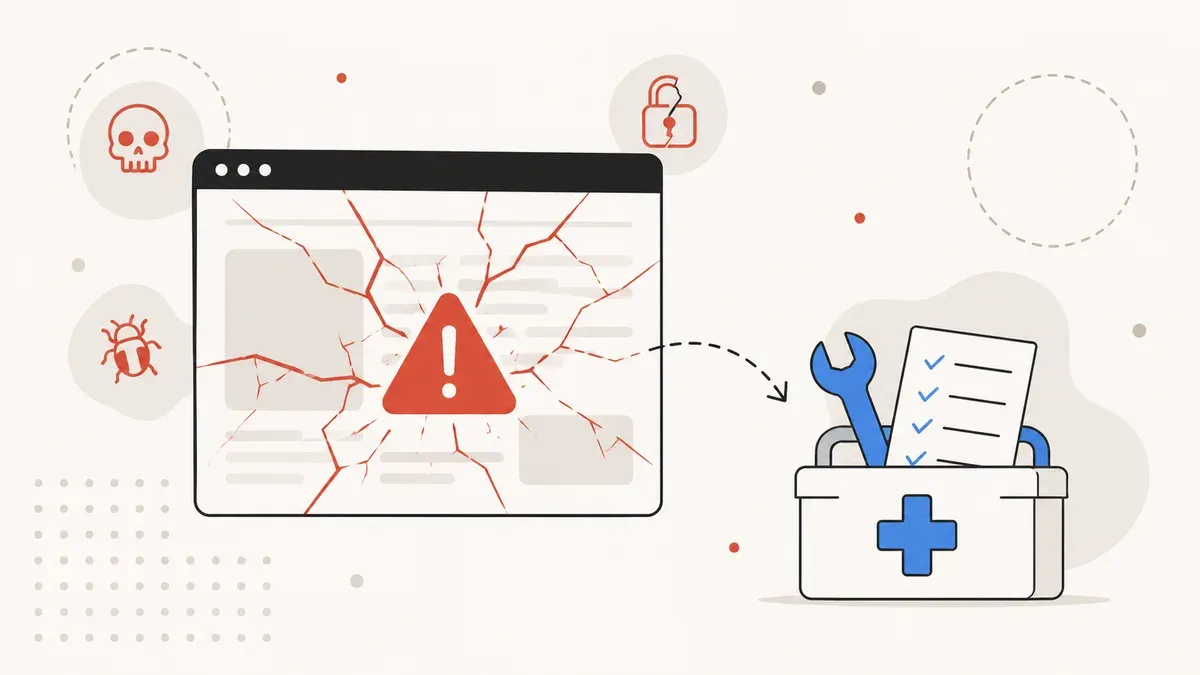
13,000 hacked sites per day, 5 hours to mass exploitation, $500–$3,000 cleanup costs. Seven immediate steps – from taking the site offline to reinstallation – you can work through right now.
Your WordPress site is redirecting to a spam page. Or you found Japanese keywords in your Google index. Or your host suspended your account. Whatever symptom brought you here: you need a plan right now, not panic. This article gives you seven steps you can work through immediately to clean up the hack, secure your data, and get your site back online.
The order matters. If you delete the malware first but skip changing passwords, you will be compromised again within hours. If you miss the backdoor, you can reinstall the core three times over and still get hacked again. Work through the steps in sequence. If you need professional help, we offer WordPress repair and malware removal as a service.
A WordPress site gets hacked every 22 minutes
worldwide
exploitation after disclosure
malware cleanup
How to tell if your site has been hacked
Not every hack is obvious. Some attackers want to stay hidden and use your site for months as an SEO spam distributor or malware relay without you noticing. Here are the most common symptoms:
- Unexpected redirects. Visitors land on pharma, casino, or spam sites instead of your page. Often only on mobile devices or only for visitors arriving from Google.
- SEO spam in Google's index. Japanese or pharmaceutical keywords appearing in your search results. Check with
site:yourdomain.comin Google. - Google warning. "This site may have been hacked" or "This site may harm your computer" in search results.
- Unknown admin users. New administrator accounts in the WordPress dashboard that nobody on your team created.
- Defaced homepage. Your homepage replaced with a hacker message.
- Unknown files. PHP files in
/wp-content/uploads/that do not belong there. Filenames likewp-tmp.php,db_cache.php, or random character strings. - Modified .htaccess code. Redirect rules or Base64-encoded blocks you did not add.
- Degraded performance. Your server is noticeably slower because it is sending spam or mining crypto in the background.
If one or more of these symptoms apply, assume your site is compromised. The following seven steps show you what to do now.
Step 1: Take the site offline immediately
Your hacked site may be distributing malware to visitors, sending spam emails, or damaging your SEO rankings with every minute it stays online. The first step is to contain the damage.
You have three options:
- Maintenance mode plugin. If you can still access the dashboard: activate a plugin like "WP Maintenance Mode" or "Coming Soon Page". This shows visitors a maintenance page and blocks access to compromised content.
- .htaccess block. If you have FTP/SFTP access but cannot reach the dashboard, add these lines to the top of your
.htaccess:
Order Deny,Allow
Deny from all
Allow from YOUR.IP.ADDRESS- Contact your host. Your host can block the site at the server level. This is the safest option because it works even if the attacker has manipulated your .htaccess file.
Before doing anything, create a full backup of the compromised site (files + database). You will need it later for analysis. Do not delete anything before you know how the attacker got in.
Step 2: Change all passwords
A hack means at least one access point has been compromised. You do not know which one. So you change all of them. 65 million brute-force attempts hit WordPress sites every day, 97% of them automated. If your password was weak, that may have been the entry point.
Change these credentials immediately:
- All WordPress admin accounts. Not just your own. Every account with administrator or editor privileges.
- FTP/SFTP password. The attacker may have manipulated files directly on the server.
- Database password. Change it in the hosting panel and then update
wp-config.php. - Hosting panel password. cPanel, Plesk, or whatever your host uses.
- Email accounts. If your email address is on the same domain, it may also be affected.
Every new password: at least 16 characters, randomly generated, no reuse. A password manager like Bitwarden or 1Password is the right tool for this. We covered in detail why weak credentials and skipped updates are the most common entry points in our article on the cost of ignoring updates.
Also reset the WordPress security salts in wp-config.php. This invalidates all existing login sessions and forces everyone (including the attacker) to log in again. Generate new salts at api.wordpress.org/secret-key/1.1/salt/.
Step 3: Contact your host
Your hosting provider has information you cannot access on your own. Contact support and ask for the following:
- Server logs. Access logs and error logs from the last 30 days. They show which files were accessed, which IP addresses were involved, and when the attack started.
- Account isolation. If you are on shared hosting, a hack on another site on the same server can affect yours. Ask the host to isolate your account.
- Server-level malware scan. Many hosts have their own scanners (ClamAV, Imunify360) that catch malware WordPress plugins miss.
- Clean backup. Ask if a backup exists from before the hack. If so, that is your safety net.
Good managed WordPress hosts like Cloudways, Kinsta, or SiteGround have incident response processes and actively help with cleanup. With budget shared hosting, you are more likely to get an automated suspension and instructions to fix the problem yourself.
Step 4: Scan for malware
Now it is time for analysis. You need a clear picture of what has been compromised. Use at least two different tools, because no single scanner catches every malware variant.
Recommended scanners:
- Wordfence (plugin). Scans core files, themes, and plugins against official repositories. Finds modified files, backdoors, and known malware signatures. The free version is sufficient for scanning.
- Sucuri SiteCheck (online, free). Checks your site externally for blacklisting, malware injections, and spam. Useful as a quick check, but cannot find backdoors in non-public files.
- MalCare (plugin). Cloud-based scan that does not strain your server. Good detection rate for obfuscated code.
Document everything the scanners find. Filenames, paths, timestamps. You need this list for the next steps.
Step 5: Find and remove backdoors
Deleting malware is not enough. Attackers place backdoors that let them return after a cleanup. This is why 42% of sites older than 3 years get hacked again: the backdoor was missed the first time.
Common hiding spots for backdoors:
- PHP files in
/wp-content/uploads/. This directory should only contain media files (images, PDFs, videos). Any PHP file here is suspicious. - Obfuscated code in
functions.php. Look forbase64_decode,eval(),str_rot13,gzinflate, or long strings of seemingly random characters. Legitimate themes rarely use these functions. - Unknown plugins. Plugins not found in the official repository, with generic names like "WP Security Helper" or single PHP files instead of a folder structure.
- wp-config.php. Check for injected code above or below the regular content. Attackers often add
requireorincludestatements there. - Cron jobs. Check WordPress cron jobs with the "WP Crontrol" plugin. Attackers register cron jobs that recreate their backdoor on a schedule.
If you are unsure whether a file is legitimate: compare it against the original version from the WordPress repository or the theme/plugin vendor. Any deviation is suspicious.
Step 6: Verify core files and database
WordPress core files should be exact copies of the official distribution. If they are not, they have been tampered with.
Verify core files with WP-CLI:
wp core verify-checksumsThis command compares every file in wp-admin/ and wp-includes/ against the official checksums from wordpress.org. Deviations are reported. If WP-CLI is not available, download the matching WordPress version from wordpress.org and compare the directories manually with a diff tool.
For any deviations: replace the affected core directories wp-admin/ and wp-includes/ entirely with fresh copies. Your content and settings live in wp-content/ and wp-config.php and are not affected.
Check the database for injections:
Attackers frequently inject spam links, redirects, or encrypted JavaScript into the database. The most common targets:
wp_posts– spam content inserted into existing posts and pageswp_options– manipulatedsiteurl,home, or widget settingswp_users– unknown admin accounts
Search the database for suspicious strings: <script, eval(, base64_decode, <iframe, .ru/, .cn/. Use phpMyAdmin or your preferred database tool. Only delete what clearly does not belong. For a detailed analysis of current attack vectors, see our WordPress security guide for 2026.
Step 7: Reinstall and harden
Once cleanup is complete, reinstall WordPress from scratch and rebuild the site in a controlled way. This sounds like a lot of work, but it is the only way to ensure no remnants of the compromise remain.
Reinstallation:
- Download a fresh WordPress core from wordpress.org and replace all core files.
- Reinstall every plugin and theme individually from the official repository. Do not carry over files from the compromised backup.
- Evaluate each plugin: is it still actively maintained? When was the last update? 91% of all WordPress vulnerabilities come from plugins. A plugin that has not been updated in a year is a risk.
- Delete all plugins and themes you are not actively using. Even deactivated plugins are attackable.
Hardening:
- Two-factor authentication (2FA) for all admin accounts. Plugins like "WP 2FA" or "Two Factor Authentication" set this up in 5 minutes.
- Web Application Firewall (WAF). Cloudflare (free tier), Sucuri Firewall, or Wordfence Premium filter malicious traffic before it reaches your server.
- Automatic updates for minor releases and security patches. The median time between vulnerability disclosure and mass exploitation is 5 hours. Manual updating is too slow.
- Restrict file permissions.
wp-config.phpto 400 or 440, directories to 755, files to 644. Block PHP execution in/wp-content/uploads/via .htaccess. - Login protection. Change the login URL, limit login attempts, disable XML-RPC (if not needed).
For ongoing security, a professional maintenance service that automates updates, backups, and monitoring pays for itself quickly.
How much does cleanup cost?
Costs depend on how deep the attack goes and whether you handle the cleanup yourself or hire professionals.
| Service | Cost | Timeframe |
|---|---|---|
| DIY cleanup | $0 (your time) | 4–16 hours |
| Fixed-price provider | from $300 | 24–48 hours |
| Standard cleanup (agency) | $500–$800 | 1–3 days |
| Severe infection + hardening | $1,500–$3,000+ | 3–7 days |
| Agency hourly rate | $90–$170/hr | variable |
The hidden costs are higher than the cleanup itself. Average total damage for SMBs exceeds $25,000 when you factor in downtime, lost revenue, reputation damage, and SEO losses. A fast, thorough cleanup is always cheaper than waiting.
If you need help with cleanup, we offer website repair at a fixed price.
Removing a Google blacklist
If Google has flagged your site as compromised, search results show a warning. That costs you 90% or more of your organic traffic. After cleanup, you need to actively tell Google the site is clean.
How to proceed:
- Open Google Search Console and navigate to "Security Issues".
- Review the listed problems. Make sure you have fixed every issue mentioned.
- Click "Request Review" and briefly describe the measures you took.
- Wait 24–72 hours for the result.
Important: Google allows only one review per 30 days. If you request too early and the site is not yet clean, you lose a month. Make sure cleanup is fully complete before submitting the review request.
After a positive review, your rankings typically recover within 24–72 hours. The warning disappears from search results and your traffic normalizes.
Preventing the next hack
Cleanup is done, the site is running again. Now the goal is to make sure you are not back here in three months. In 2025, 11,334 new WordPress vulnerabilities were published, a 42% increase over the prior year. 46% of them had no patch at the time of disclosure. The threat landscape is getting worse, not better.
The main entry points and how to close them:
91% of vulnerabilities are in plugins. The most effective prevention is to only use plugins you actually need, keep them up to date, and remove untrusted plugins immediately. For a full breakdown of how to set up WordPress security systematically, see our WordPress security guide for 2026. What happens when updates are ignored long-term is covered in our article on the cost of outdated WordPress installations.
WordPress hacked? We help immediately.
Malware cleanup, backdoor removal, hardening, and Google blacklist recovery. Fixed price, no hidden costs.
Request emergency help →