White Screen of Death: Most Common Causes and Fixes
80% of all WSOD cases caused by plugins, 90% happen after updates. Seven steps – from Recovery Mode through WP_DEBUG to core repair – to fix the white screen in under 30 minutes.
Your WordPress site shows nothing. Instead of your website, you see a blank white page or the message "There has been a critical error on this website." No menu, no footer, no dashboard. Your business is offline, and every minute counts.
The White Screen of Death (WSOD) is one of the most common WordPress failures. The good news: in most cases, it can be resolved in under 30 minutes if you follow a systematic approach. This article walks you through the seven steps we use as a WordPress repair service to diagnose and fix the WSOD on client websites.
The WSOD hits 9 out of 10 sites after updates
caused by plugins
come from plugins
often too low for 2026
Why does WordPress show a white screen?
The WSOD occurs when PHP encounters a fatal error during page rendering and terminates execution. Before WordPress 5.2, the result was a completely blank page with no error message at all. Since version 5.2, there is a Recovery Mode that at least displays a message and sends an email with diagnostic details.
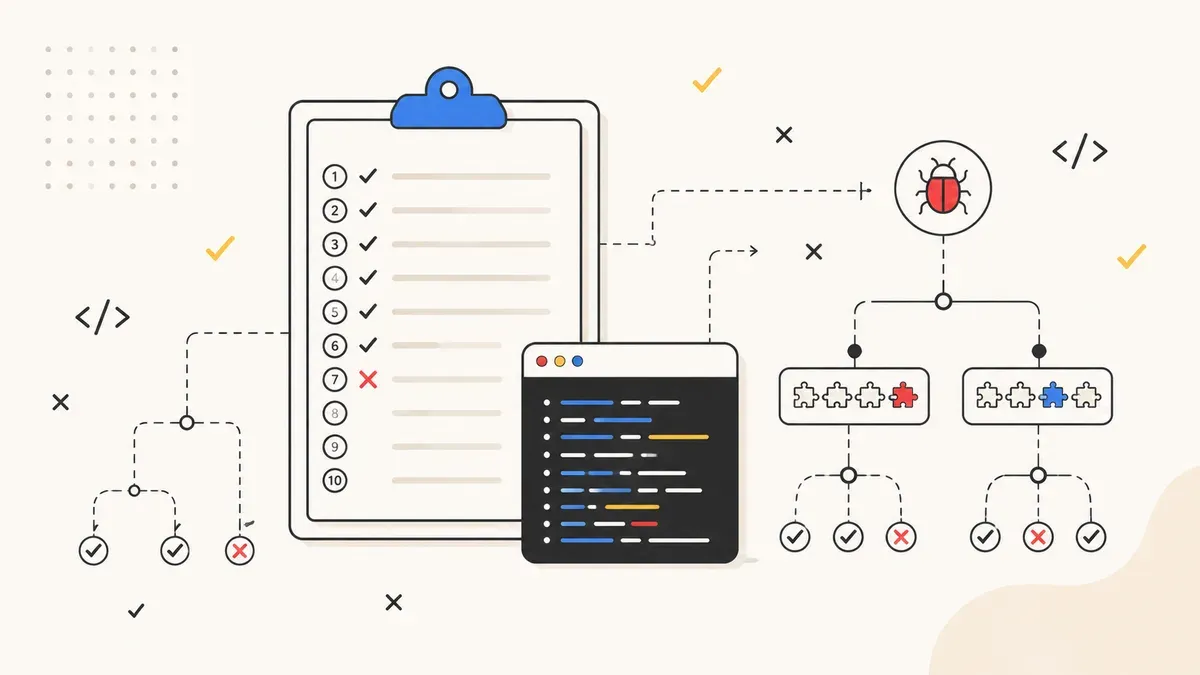
The causes fall into four categories. Here is the real-world distribution:
About 50% of critical errors result from plugin conflicts after updates. A plugin gets updated but is incompatible with your PHP version or another plugin, and the entire site goes down. Particularly relevant in 2026: PHP 8.4 removed several deprecated functions that older plugins still rely on. We cover this topic in depth in our WordPress security 2026 article.
Step 1: Check the Recovery Mode email
Since WordPress 5.2, WordPress automatically detects fatal PHP errors and sends an email to the admin address. This email contains a recovery link that lets you log into the dashboard even when the frontend is broken.
Check the inbox of the email address stored in WordPress under Settings > General > Email Address. Look in your spam folder too. The email identifies the plugin or theme that triggered the error and includes a temporary login link.
If you find the email: click the recovery link, log in, and deactivate the offending plugin or theme. Done. In roughly 30% of cases, the WSOD is resolved without needing FTP or SSH.
If there is no email or the link has expired, move on to Step 2.
Step 2: Enable WP_DEBUG
Without error messages, you are working blind. WP_DEBUG makes WordPress tell you exactly what went wrong. Open the wp-config.php file in the root of your WordPress installation via FTP or file manager and find the WP_DEBUG line:
// In wp-config.php – before "That's all, stop editing!"
define( 'WP_DEBUG', true );
define( 'WP_DEBUG_LOG', true );
define( 'WP_DEBUG_DISPLAY', false );
WP_DEBUG_LOG writes all errors to /wp-content/debug.log. Setting WP_DEBUG_DISPLAY to false prevents error messages from appearing on the live site – critical for production websites.
Reload the page and then open /wp-content/debug.log via FTP. You will find the exact error message with file name and line number. Typical entries look like this:
PHP Fatal error: Uncaught Error: Call to undefined function
create_function() in /wp-content/plugins/old-plugin/init.php:42
This tells you: the plugin old-plugin uses create_function(), which was removed in PHP 8.4. Now you know which plugin is causing the error and can act accordingly.
Step 3: Disable all plugins
If you cannot access the dashboard, disable all plugins at the filesystem level by renaming the plugin folder.
Via FTP: Navigate to /wp-content/ and rename the plugins folder to plugins_disabled. WordPress can no longer find the plugins and deactivates them automatically.
Via WP-CLI (if you have SSH access):
# Deactivate all plugins at once
wp plugin deactivate --all

# Or just a specific plugin
wp plugin deactivate woocommerce
If the site works after renaming the folder, a plugin is the problem. Rename the folder back to plugins and reactivate plugins one by one in the dashboard until the error returns. That identifies the culprit.
This plugin-by-plugin test takes about 10 minutes with 20 plugins. Our article on the risks of ignoring updates explains why regular updates prevent this scenario in the first place.
Step 4: Switch to a default theme
If all plugins are disabled and the WSOD persists, the theme is the most likely cause. The same trick works: rename the active theme folder.
Via FTP: Navigate to /wp-content/themes/ and rename your active theme folder (e.g. flavor to flavor_backup). WordPress automatically falls back to a default theme like Twenty Twenty-Five.
Via WP-CLI:
# Switch to the default theme
wp theme activate twentytwentyfive
If the site works with the default theme, your theme has a problem. Check whether a theme update is available. For custom themes: look at functions.php and the debug.log – the faulty line will be listed there.
Step 5: Increase PHP memory limit
WordPress sets a default memory limit of 128 MB. For a site running WooCommerce, a page builder, and several active plugins, that is often not enough. When the memory limit is exceeded, PHP terminates – white screen.
Increase the limit in wp-config.php:
// Increase WordPress memory limit
define( 'WP_MEMORY_LIMIT', '256M' );

// For the admin dashboard separately (optional)
define( 'WP_MAX_MEMORY_LIMIT', '512M' );
Alternatively, you can set the PHP limit in .htaccess:
# In .htaccess
php_value memory_limit 256M
Or in php.ini (if you have access):
memory_limit = 256MOn shared hosting, there is often an upper limit set by your host. If 256 MB is not enough or your host does not allow it, that is a sign you should consider better hosting. VPS hosting gives you full control over PHP settings.
Step 6: Repair core files
In rare cases, the WordPress core files themselves are corrupted – from a failed auto-update, a server crash, or a hack. If Steps 1 through 5 did not help, replace the core files manually.
Via WP-CLI (fastest method):
# Verify core file integrity
wp core verify-checksums

# Re-download corrupted files
wp core download --skip-content --force
Via FTP:
- Download the latest WordPress version from wordpress.org
- Extract the archive locally
- Upload the
/wp-admin/and/wp-includes/folders via FTP, overwriting the existing files - Upload the root-level files (wp-login.php, wp-cron.php, etc.) – but not
wp-config.phpand not the/wp-content/folder
The /wp-content/ folder contains your themes, plugins, and uploads. Do not touch it. The wp-config.php contains your database credentials. It stays as it is.
Step 7: PCRE limits and edge cases
In about 2% of cases, the problem runs deeper. If your site has very large pages (long content, complex shortcodes), the PHP PCRE backtrack limit can be exceeded. This can be fixed in .htaccess or php.ini:
# In .htaccess
php_value pcre.backtrack_limit 1000000
php_value pcre.recursion_limit 500000
Other edge cases we encounter in practice:
| Problem | Symptom | Solution |
|---|---|---|
| Syntax error in functions.php | WSOD on frontend only | Fix the error via FTP in the file |
| Full disk | WSOD + DB errors in log | Delete old backups and logs |
| Incompatible PHP version | WSOD after PHP upgrade | Revert PHP version in hosting panel |
| Corrupted .htaccess | 500 error instead of WSOD | Rename .htaccess, re-save permalinks |
| Corrupt object cache | Intermittent WSOD | Delete object-cache.php in /wp-content/ |
Preventing the WSOD: proactive maintenance beats firefighting
The best WSOD is the one that never happens. Four measures reduce the risk to near zero:
1. Set up automatic backups. Before you update anything, you need a backup. Daily automatic backups are non-negotiable. Our backup guide shows you how to set this up in 15 minutes.
2. Use a staging environment. Do not test updates on the live site. Most managed hosts offer one-click staging. Test plugin and theme updates there before pushing them live.
3. Control your PHP version. PHP 8.4 has been available since late 2024. Many plugins had a year to adapt, but not all did. Check your plugin compatibility before upgrading PHP. The "PHP Compatibility Checker" tool helps with this.
4. Practice plugin hygiene. 91% of all WordPress vulnerabilities come from plugins. Deactivate and delete plugins you do not need. Every active plugin is a potential failure point and a potential security vulnerability.
WordPress down? We help immediately.
White screen, critical error, or hacked site – our team diagnoses and repairs your WordPress website. No subscription, no hidden fees.
Request emergency help →