Automatic Backups for WordPress: What Actually Works

54% have already lost data, only 10% run daily backups. The 3-2-1 rule, five plugins compared, and why a backup on the same server is not a backup.
54% of all website owners have experienced data loss. At the same time, only 10% run daily backups. The gap between those two numbers costs thousands of SMBs their website, online shop, or months of content work every year – often with no way to recover.
Manual backups fail because of discipline. Host backups fail because of single points of failure. This article shows you which backup strategy works for your WordPress site, compares the five relevant plugins, and explains why a backup on the same server as your website is not a backup. If you want to see what other maintenance tasks WordPress owners underestimate, read our article on the cost of ignoring updates.
54% have already
lost data
daily backups
by human error
plugin (free tier)
Why manual backups do not work
You decide to run a backup every Friday. Week one works. Week two works. Week three slips to Saturday. Week four you forget. Five months later your site gets hacked – and your most recent backup is three months old.
That is not a discipline problem. It is a system problem. Manual processes break under daily workload. The solution is automatic backups that run without your involvement – and that you can restore with a single click when you need them.
Three scenarios where you need a current backup:
- A plugin update breaks the site. An update causes a white screen or wrecks the layout. With a backup from an hour ago, you are back online in five minutes. Without one, you start debugging – which can take hours.
- Hack or malware. Your site is distributing spam or redirecting to a pharma page. A clean backup from before the attack is the fastest path back. Our guide to emergency recovery for hacked WordPress covers the full process.
- Your own mistake. You delete a page accidentally, overwrite a database table, or misconfigure an .htaccess file. 75% of all data loss comes from human error – not from technical failures.
The 3-2-1 rule: the minimum for any backup
The 3-2-1 rule comes from professional IT and is the gold standard for data protection. It is simple:
- 3 copies of your data (the live site + 2 backups)
- 2 different storage media (e.g. server + cloud)
- 1 copy offsite (at a different physical location than your server)
For WordPress, that means: a backup on the same server as your website is copy 2 on medium 1 – if the server goes down, you lose both. That is what happened during a SiteGround migration in 2020: sites with offsite backups recovered. Sites relying on host backups lost data.
The offsite copy is the critical piece. Google Drive, Dropbox, Amazon S3, or a second server – the point is that your backup does not live where your site lives.
The 5 best backup plugins compared
All five plugins automate backups and support offsite storage. The differences lie in architecture, free-tier capabilities, and premium pricing.
| Plugin | Free tier | Premium from | Offsite in free | Incremental |
|---|---|---|---|---|
| UpdraftPlus | Full-featured | $70/yr (2 sites) | Yes (Google Drive, Dropbox, S3) | Premium only |
| BlogVault | No (trial only) | $99/yr (1 site) | Yes (own servers) | Yes (default) |
| BackWPup | Yes | $69/yr (1 site) | Yes (Dropbox, S3) | Premium only |
| Jetpack Backup | No | ~$120/yr | Yes (Jetpack Cloud) | Yes |
| WPvivid | Yes | $49/yr (2 sites) | Yes (Google Drive, Dropbox, S3) | Premium only |
UpdraftPlus – the market leader
Over 3 million active installations. The free version does more than most premium alternatives: scheduled backups, offsite storage (Google Drive, Dropbox, S3, Rackspace, FTP), one-click restore. What is missing: incremental backups that only save changed files instead of running a full backup every time. For large sites (over 5 GB), that doubles storage requirements and strains the server.
The premium version ($70/year for 2 sites) adds incremental backups, migration, multisite support, and additional storage targets (OneDrive, Azure, Backblaze B2). For most SMB websites, the free version is sufficient.
BlogVault – backups without server load
BlogVault takes a different approach: backups run on BlogVault's own servers, not on your hosting. That means zero server load during the backup process. For WooCommerce shops with large databases and high server utilization, this is a measurable advantage.
Every backup is incremental by default. It includes a one-click staging environment, migration tools, and a centralized dashboard for managing multiple sites. The price: $99/year for one site (Personal), $299/year (Business), and $499/year for WooCommerce with hourly backups.
BackWPup, Jetpack, and WPvivid
BackWPup is solid and developed in Germany. Good free version, but no one-click restore in free – you have to restore backups manually via FTP and phpMyAdmin. For technically skilled users, that is fine. For everyone else, it is a dealbreaker in an emergency.
Jetpack Backup (part of Jetpack) offers real-time backups with a 30-day archive. Well integrated into the Automattic WordPress ecosystem, but you cannot choose your own offsite target – everything lives on Jetpack servers. At $120/year for a single feature within a larger package, the value proposition is debatable.
WPvivid is the cheapest premium entry: $49/year for 2 sites. The free version supports scheduled backups and offsite storage. Migration and staging are limited in free, but for basic backup needs, WPvivid is the best budget option.
Server-level backups: what your host provides
Most managed hosting providers (SiteGround, Kinsta, Cloudways) offer automatic daily backups. That sounds like a solution – but it is a supplement at best.
Host backups have three limitations:
- Retention is limited. Many hosts store backups for 14–30 days. If you discover a hack 45 days after it happened, all host backups are already infected.
- No granular restore. You rarely can restore a single database table or a single plugin. It is all or nothing – a full restore that overwrites recent changes too.
- Same-infrastructure risk. The backup sits on the same infrastructure as your site. During a data center outage or an account-level issue at the host, both disappear. Our hosting comparison shows which providers include offsite backups as standard.
The best strategy: host backup as a fast first line of defense, plugin backup with offsite storage as the actual safety net. That satisfies the 3-2-1 rule without paying twice.
Backup strategy by website type
Not every site needs the same backup frequency. The right strategy depends on how often your data changes.
| Website type | Frequency | Retention | Recommendation |
|---|---|---|---|
| Blog / portfolio | Daily | 30 days | UpdraftPlus Free + Google Drive |
| Business website | Daily | 60 days | UpdraftPlus Free or WPvivid |
| WooCommerce shop | Hourly | 90 days | BlogVault WooCommerce |
| Membership / LMS | Hourly | 90 days | BlogVault Business or Jetpack |
| High-traffic magazine | Every 6 hours | 60 days | UpdraftPlus Premium + S3 |
For WooCommerce shops, frequency is critical. Between two daily backups, dozens of orders can come in. If you restore yesterday's 10 PM backup, all orders since then are gone – revenue lost, customer data lost, fulfillment disrupted.
Test your restores – the forgotten step
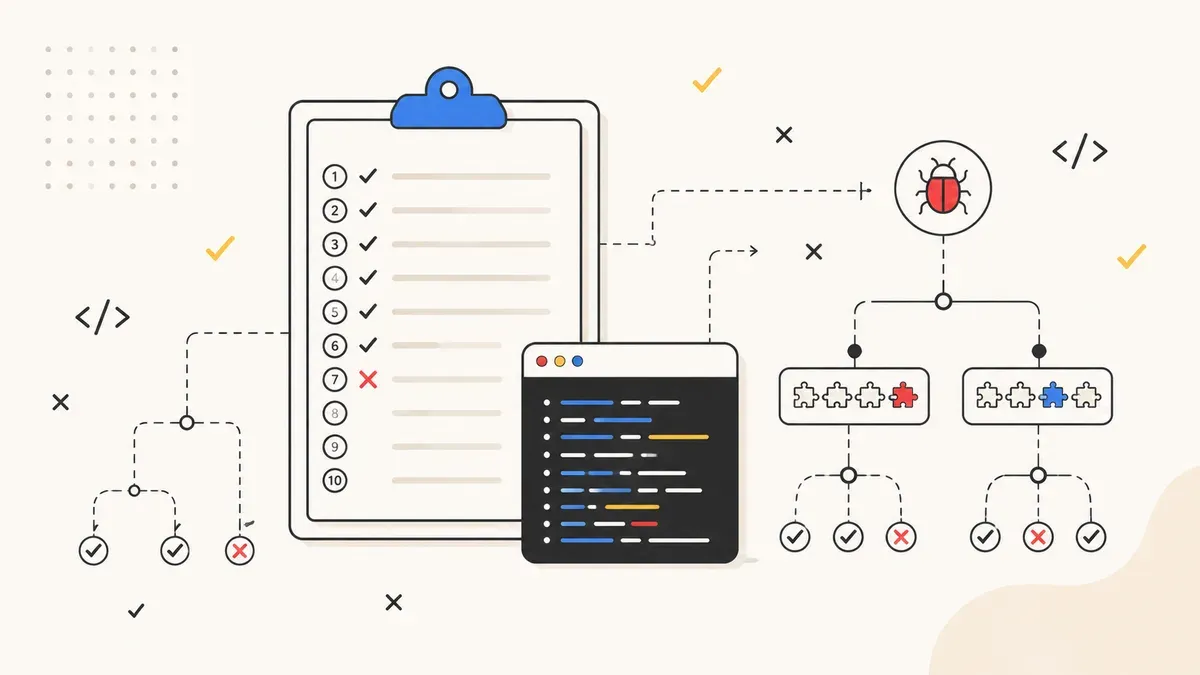
A backup you have never tested is a promise without proof. You do not know whether the file is complete, whether the restore process works, or how long recovery takes – until you need it.
Test your restore process at least once per quarter:
- Set up a staging environment. Most hosts offer one-click staging. BlogVault has it built in. Alternatively, a local WordPress installation via Local or DevKinsta.
- Restore the backup. Download the current backup and restore it on the staging environment. Use the plugin's restore process – not manual FTP.
- Functional test. Check: Does the site load? Do forms work? Is the shop checkout accessible? Are the latest contents present?
- Measure the time. How long does the restore take? In an emergency, you want to know whether you are back online in 10 minutes or 2 hours.
When you look at WordPress security more broadly, backups are the last line of defense. Updates, WAF, and monitoring prevent attacks. Backups save you when prevention fails.
Professional WordPress maintenance includes automatic offsite backups, regular restore tests, and monitoring – so you can focus on your business instead of backup configurations.
Let professionals handle your backups?
Automatic offsite backups, regular restore tests, and 24/7 monitoring. 30-minute consultation, free of charge.
Request maintenance consultation →