Finding Website Errors: A WordPress Debugging Checklist
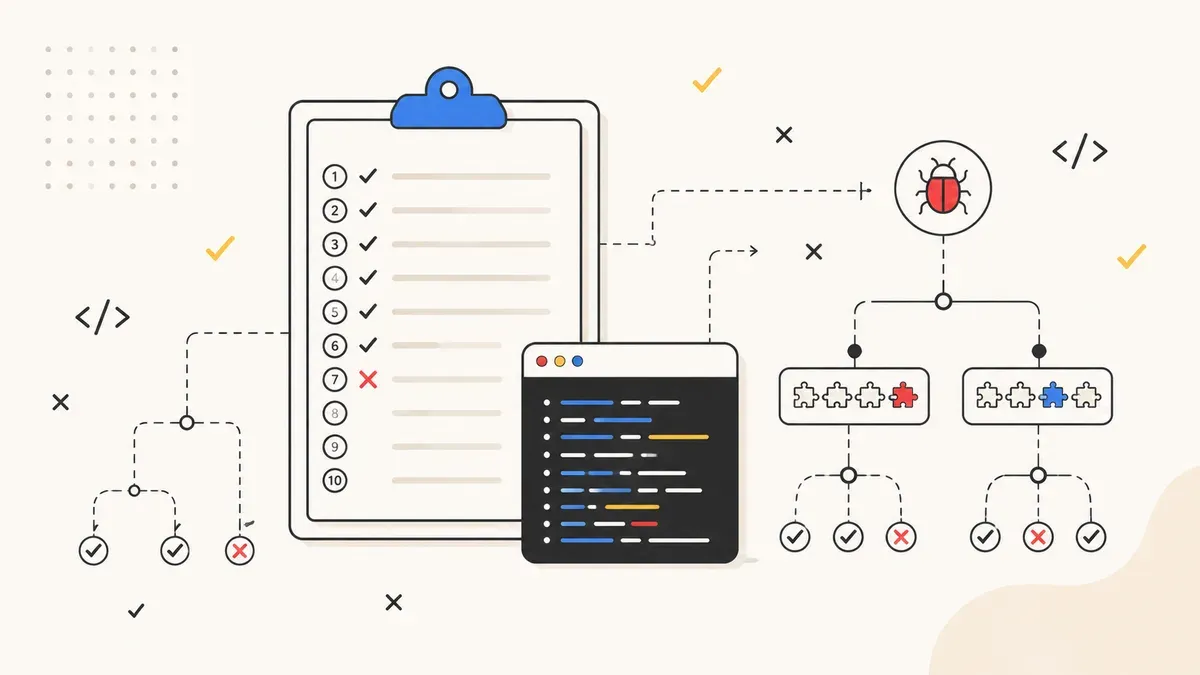
Critical error, 500 or database error? This 10-step checklist finds the cause systematically: read the logs, then bisect plugins in 4–5 rounds instead of 20.
Monday morning, 8:40 am. You want to change one small thing on your website and instead you see: "There has been a critical error on this website." No error code, no hint at the cause. The admin area won't load either, and a prospect is going to look at your offer at 11.
This is the point where most site owners start guessing: clear the cache, deactivate a plugin, try a forum tip, install a repair plugin for good measure. Three hours later the site is still down, and now nobody knows what has been changed along the way. This article gives you the opposite: a fixed diagnostic workflow from symptom to test to fix, which you work through in the same order every time.
91% of new WordPress vulnerabilities sit in plugins
only 2 in core (Patchstack)
grants itself – often too little
across 20 installed plugins
Document first, back up second, touch things last
Before you deactivate the first plugin, answer three questions in writing. What is the exact error message, word for word or as a screenshot? When did the error first appear? And what was changed on the site most recently?
The third question matters most. In the repair cases that land on our desk, the error correlates with the most recent change in the vast majority of cases: a plugin update the night before, a freshly installed theme, a PHP version switch your host performed automatically. Changes you did not make yourself count too. Auto-updates run overnight, and hosts raise PHP versions without asking. Once you know the last change, you have a prime suspect before you open a single log.
A permanent change log helps as well: a simple document where you note updates, new plugins and configuration changes with a date. The next time something breaks, it answers the question about the last change in seconds. If you have outsourced maintenance, your provider should hand you a log like this.
Then, before any intervention: take a backup. That feels backwards on a site that is already broken. The reason: if something goes wrong during debugging, say a database repair with side effects or an accidentally deleted file, you want to roll back to the state from 10 minutes ago, not to last week. Save the files via FTP or the file manager in your hosting panel, and export the database via phpMyAdmin. Our guide to automatic WordPress backups covers how to automate this permanently.
Symptom, most likely cause, first test
Every error pattern has one test that narrows down the cause fastest. The table is your shortcut; the details for each pattern follow below.
| Symptom | Most likely cause | First test |
|---|---|---|
| "There has been a critical error" | PHP fatal error from a plugin or theme | Open recovery email, read debug.log |
| 500 Internal Server Error | Corrupt .htaccess or plugin conflict | Server error log in your hosting panel |
| "Error establishing a database connection" | Wrong credentials or DB server down | Compare wp-config.php with panel data |
| 404 on all subpages, homepage works | Broken rewrite rules | Re-save permalinks |
| Browser warning, padlock icon missing | Mixed content after HTTPS migration | DevTools console (F12) |
| "Allowed memory size exhausted" | WP memory limit of 40 MB reached | Check WP_MEMORY_LIMIT in wp-config.php |
| Diffuse glitches without a clear message | Plugin conflict | Troubleshooting mode + bisection |
| Fatal error right after a PHP update | Plugin uses removed PHP functions | Roll back PHP version in the panel |
| Completely white page | White Screen of Death | Dedicated WSOD guide |
| Spam redirects, unknown admin users | Site has been hacked | Emergency guide in 7 steps |
Your toolkit: logs, debug mode, DevTools
WordPress tells you what is broken. You just need to know where it does that.
WP_DEBUG: switch on the error log
Debug mode writes every PHP error to a log file. Open the wp-config.php in the root directory of your installation and add these lines before the "That's all, stop editing!" comment:
define( 'WP_DEBUG', true );
define( 'WP_DEBUG_LOG', true );
define( 'WP_DEBUG_DISPLAY', false );
@ini_set( 'display_errors', 0 );
The first two lines enable logging to the debug.log file. The last two prevent error messages from showing up on the page for visitors, because those messages contain server paths and plugin names. Then load the broken page once so the error gets written to the log.
How to read the log: a typical line says "PHP Fatal error: Uncaught Error: Call to undefined function xyz() in /var/www/html/wp-content/plugins/example-plugin/init.php on line 42". Three pieces of information matter. The error type tells you the severity: a fatal error takes the page down, warnings and notices usually do not. The path reveals the responsible plugin or theme. The line number only becomes relevant when you report the error to the developer.
Hardly anyone realizes that debug.log sits at /wp-content/debug.log by default and is publicly reachable through the browser. Security scanners probe that path as a matter of routine, because it exposes server paths, plugin versions and sometimes sensitive data. So store the log outside your webroot:
define( 'WP_DEBUG_LOG', '/path/outside/webroot/wp-debug.log' );Just as important: once you are done debugging, set all values back to false. Debug mode is a diagnostic tool, not a permanent state for live sites.
Server error log: works even when WordPress no longer boots
With a 500 error, or a failure so early in the load process that WordPress cannot log anything itself, the web server's error log steps in. You will find it in your hosting panel, labelled "Error Log" or "Logs" depending on the provider. It records fatal errors with timestamp and file path, even when your site serves nothing but a blank page.
Recovery mode: the email that lands in spam
Since version 5.2, WordPress detects fatal errors on its own and sends the admin an email with a link into recovery mode. Inside it, the admin area runs with the faulty component paused: the plugin or theme causing the error is deactivated, and you can update or remove it the normal way.
There are two pitfalls. First, the email often lands in the spam folder because it goes out through the server's mail function. The error occurs before your SMTP plugin even loads, so your otherwise clean mail setup does not apply here. Check the spam folder of every address that might be stored as the admin email. Second, according to the official WordPress documentation the link is only valid for 1 day. If it has expired, you can trigger recovery mode manually by appending /wp-login.php?action=entered_recovery_mode to your domain.
Query Monitor and Health Check
Two plugins belong in every debugging toolkit. Query Monitor shows you database queries, PHP errors, hooks and which plugins slow a page down, right in the admin bar. It is also the tool of choice when your site is not broken but just slow. Health Check & Troubleshooting ships the troubleshooting mode that gives plugin bisection its decisive advantage.
Browser DevTools: press F12
If the site loads but something misbehaves (a slider freezes, a form will not send), the error often lives in the browser rather than on the server. Open DevTools with F12. The console shows JavaScript errors and mixed content warnings with the exact URL of the offending resource. The network tab highlights in red which resources fail with 4xx or 5xx status codes.
The 10-step checklist
Work through the steps in order, and only skip one if it does not apply to your error pattern.
- Document the symptom. Exact error message, time of first occurrence, last change to the site (update, new plugin, PHP switch by your host). The last change is your prime suspect.
- Take a backup. Files via FTP, database via phpMyAdmin. Only then does anything get touched.
- Check the recovery email. Including the spam folder. The link leads straight to the culprit and is valid for 1 day.
- Read the logs. Enable and read debug.log, and check the server error log in your hosting panel in parallel. The "PHP Fatal error" line with its file path names the guilty plugin or theme.
- Check the browser console. For layout or functionality problems without a fatal error: F12, console and network tab.
- Bisect the plugins. In troubleshooting mode or via FTP, test the plugin halves against each other until the culprit is isolated.
- Test the theme. Switch to a default theme such as Twenty Twenty-Five. If the error disappears, it lives in your theme.
- Reset the .htaccess. For 404 and 500 errors: rename the file, re-save permalinks, and WordPress generates a fresh copy.
- Check memory and PHP version. Raise WP_MEMORY_LIMIT and compare your PHP version against what your plugins require.
- Escalate. If the error keeps returning or anything points to a hack, hand over to a professional. The criteria are in the last section.
The eight most common error patterns and their fixes
For the white screen and hacked sites we have dedicated step-by-step guides: White Screen of Death and WordPress Hacked: Emergency Help in 7 Steps. Here are the remaining eight patterns, each with cause and fix.
1. "There has been a critical error on this website"
WordPress has shown this message since version 5.2 whenever a PHP fatal error occurs. Behind it is usually a plugin or theme that crashes after an update or cannot cope with your PHP version. The fix: use the recovery email (see above), or read debug.log. The line containing "PHP Fatal error" includes a file path, and if that path contains /wp-content/plugins/plugin-name/, you know your culprit. If you are locked out of the admin area, rename the plugin folder via FTP, for example from plugin-name to plugin-name-off. WordPress then deactivates the plugin automatically and the site loads again.
2. 500 Internal Server Error
The 500 is a catch-all message from the server with no details. The four usual causes: a corrupt .htaccess, a plugin conflict, exhausted memory or an incompatible PHP version. Your first look belongs to the server error log in the hosting panel, which usually states the concrete cause. If there is nothing useful in it, reset the .htaccess: rename it via FTP, then save once under Settings > Permalinks in the admin area, and WordPress writes a clean new file. If the error persists, continue with plugin bisection.
3. "Error establishing a database connection"
WordPress cannot reach its database. Either the credentials in wp-config.php no longer match (after a hosting migration or password reset, for instance), the database server is down, or the database is corrupt. First compare DB_NAME, DB_USER, DB_PASSWORD and DB_HOST in wp-config.php with the values in your hosting panel. If the credentials match, you can use the built-in repair. Add this to wp-config.php:
define( 'WP_ALLOW_REPAIR', true );Then open your-domain.com/wp-admin/maint/repair.php and start the repair. Afterwards, remove that line immediately, because the repair page works without a login. As long as the constant is set, any visitor can open it.
4. 404 on all subpages, homepage works
If the homepage loads but every subpage throws a 404, the rewrite rules are broken, meaning the .htaccess (Apache/LiteSpeed) or the rewrite configuration. The fix usually takes 30 seconds: open Settings > Permalinks and click Save without changing anything. WordPress rewrites the rewrite rules in the process. If that does not help, the .htaccess is not writable or has been overwritten by a plugin, in which case the .htaccess reset from the 500 section applies.
5. Mixed content: the padlock icon is gone
After an HTTPS migration, some resources (images, scripts, stylesheets) still load over http. Browsers block this content or show warnings, and the padlock icon disappears. The DevTools console lists every affected URL individually. The fix is a search-replace in the database, swapping every occurrence of http://your-domain.com for https://your-domain.com. The Better Search Replace plugin handles this including the serialized data that a manual SQL statement would corrupt. Step 2 of the checklist applies first: database backup. If individual warnings remain after the search-replace, those URLs usually come from links hardcoded in the theme or in widgets; the DevTools console shows you the source for those too.
6. "Allowed memory size exhausted"
By default, WordPress grants itself only 40 MB of PHP memory (64 MB on multisite). That was plenty in 2010, but a modern theme plus WooCommerce plus a page builder blows through it. The fix in wp-config.php:
define( 'WP_MEMORY_LIMIT', '256M' );
define( 'WP_MAX_MEMORY_LIMIT', '512M' );
The first constant applies to the frontend, the second to the admin area and heavy tasks. Important: WordPress cannot exceed the server's memory limit. If your hosting plan caps out at 128 MB, you stay at 128 MB no matter what wp-config.php says. Then your only options are a call to your host or a plan upgrade. To see the actual limit your server enforces, open Tools > Site Health > Info and check the Server section.
7. Plugin conflict with diffuse symptoms
Not every error throws a message. Sometimes the contact form stops sending, the checkout hangs, or the admin area crawls, and none of it shows up in any log. The classic pattern behind this: two plugins interfering with each other, often after one of them was updated. This is where the troubleshooting mode of the Health Check plugin comes in, combined with the bisection from the next section.
8. Fatal error after a PHP update by your host
Hosts raise PHP versions automatically on a regular basis, and old plugins that rely on removed PHP functions then crash with a fatal error. You changed nothing, yet the site is down. The fix takes three moves. First, roll the PHP version back to the previous one in your hosting panel so the site runs again. Second, check debug.log to see which plugin throws the fatal error, and update or replace it. Third, raise the PHP version again, because the old version will not stay available forever and receives no security patches.
Plugin bisection: 20 suspects, five test rounds
The naive way to find a plugin conflict: deactivate all 20 plugins one by one and test after each. That is up to 20 test rounds. Bisection halves instead: you deactivate the first half of the plugins and test. If the error is gone, the culprit sits in the deactivated half; if it is still there, in the active one. You halve the suspicious half again, and so on. With 20 plugins you reach the culprit after 4–5 rounds: 20, 10, 5, 3, 1.
There are two ways to run it:
- Troubleshooting mode (Health Check & Troubleshooting plugin): deactivates plugins and theme for your own session only. Visitors keep seeing the site as normal, with all plugins active. This lets you bisect on a live site with running traffic without anyone noticing.
- Via FTP: if the admin area is unreachable, rename plugin folders under /wp-content/plugins/. A renamed folder counts as a deactivated plugin to WordPress. Always works, but affects your visitors too.
Two traps wait while you bisect. First: clear the cache between every test round (the caching plugin's page cache, the server cache, and the browser cache when in doubt), otherwise you are testing against a cached version of the page and drawing the wrong conclusions. Second: record which plugins were active before you start, a screenshot of the plugin list is enough. After the diagnosis you want to restore the original state exactly, minus the culprit.
One detail for WooCommerce shops and sites with booking features: test outside peak hours or in troubleshooting mode, because a shop plugin deactivated via FTP means a checkout taken offline.
When to stop tinkering
The checklist resolves the typical error patterns. There are situations, though, where continuing to tinker costs more than handing over. The backdrop: according to Patchstack, 11,334 new WordPress security vulnerabilities were registered in 2025, 91% of them in plugins and only 2 in core. A recurring "error" is therefore more often a security problem in a plugin than you might expect.
The green bar is not a rendering glitch: 2 out of 11,334 new vulnerabilities affected WordPress core. The risk sits almost entirely in what you install.
Hand over to a professional if any of these apply:
- The error returns after cleanup, even though you removed the culprit
- You find unknown admin users or PHP files in places they do not belong, such as /wp-content/uploads/
- Google Search Console shows a security warning for your domain
- Visitors get redirected to spam pages you never linked
- The database is corrupt and the built-in repair fails
- You run a shop with customer data, where every misstep has consequences for third parties
The first four points indicate a hack. In that case follow our guide WordPress Hacked: Emergency Help in 7 Steps, because a hacked system gets cleaned differently than a broken one. For everything else there is our website repair service: we diagnose with exactly this workflow, just with more routine and the right server access.
Website emergency? We take over.
Site down, critical error, no time to debug it yourself: we find the cause, fix it, and tell you afterwards how it happened.
Free consultation →